How to Write Documentation for Humans and AI
Your documentation has a second audience now, and most teams don't realize it.
Humans still read your help docs, product guides, and SOPs. But AI systems are reading them too.
Chatbots, AI search assistants, copilots, and support tools all pull from your documentation to generate answers.
But here's the problem.
Most documentation was written for humans only. It assumes the reader started at the top and scrolled down. It uses vague references like "as we covered earlier." It buries key steps inside long paragraphs.
A human can work through that. An AI system can't.
This results in your chatbot giving half-answers. Or worse, your AI search returns the wrong article. Thus, customers give up on self-service and submit a ticket instead.
The fix isn't complicated. And the best part is that writing docs for AI doesn't mean making them worse for humans. It actually makes them better for everyone. Here's exactly how to do it.
How AI Actually Reads Your Documentation
Before you change how you write, you need to understand how AI processes your content. It's fundamentally different from how a person reads.
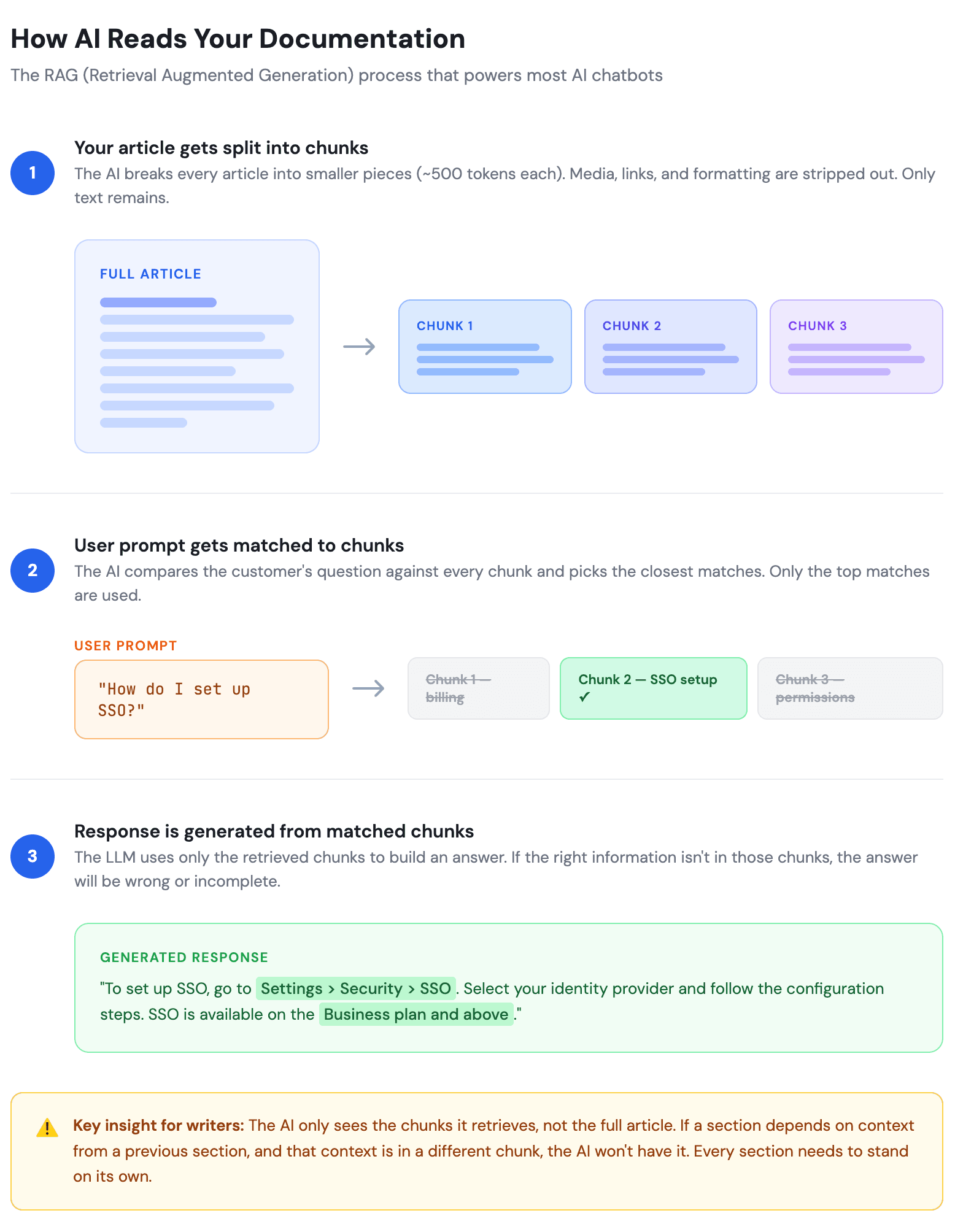
When an AI system needs to answer a question, it doesn't open your help center and browse through articles. Instead, it does something called retrieval.
Your entire knowledge base gets split into smaller pieces called chunks. These are usually a few paragraphs long. When a user asks a question, the AI compares that question against all the chunks and pulls the ones that seem most relevant. Then it uses those chunks to build a response.
This process has three important consequences for how you write.
First, AI reads sections in isolation. It might pull paragraph four from article A and paragraph two from article B. It doesn't have the full context of either article. If paragraph four only makes sense because paragraph three set it up, the AI is working with incomplete information.
Second, AI can't infer what you didn't write. A human reader can fill in small gaps. If your doc says "Complete the setup, then move to the next step," a human can figure out what "the next step" probably means. AI takes your words literally. If you didn't explicitly name the next step, the AI doesn't know it.
Third, the quality of your writing directly affects the quality of AI responses. Vague docs produce vague answers. Ambiguous docs produce wrong answers. Specific, well-structured docs produce accurate answers.
Everything in this article flows from these three realities.
Structure Your Content with Clear, Descriptive Headings
Headings do double duty. For humans, they're navigation. For AI, they're labels that explain what each section contains.
Most documentation uses headings like "Overview," "Getting Started," or "Additional Information."
These tell the AI almost nothing. When a customer asks "How do I connect my Slack integration?", the AI is scanning headings to find the right section.
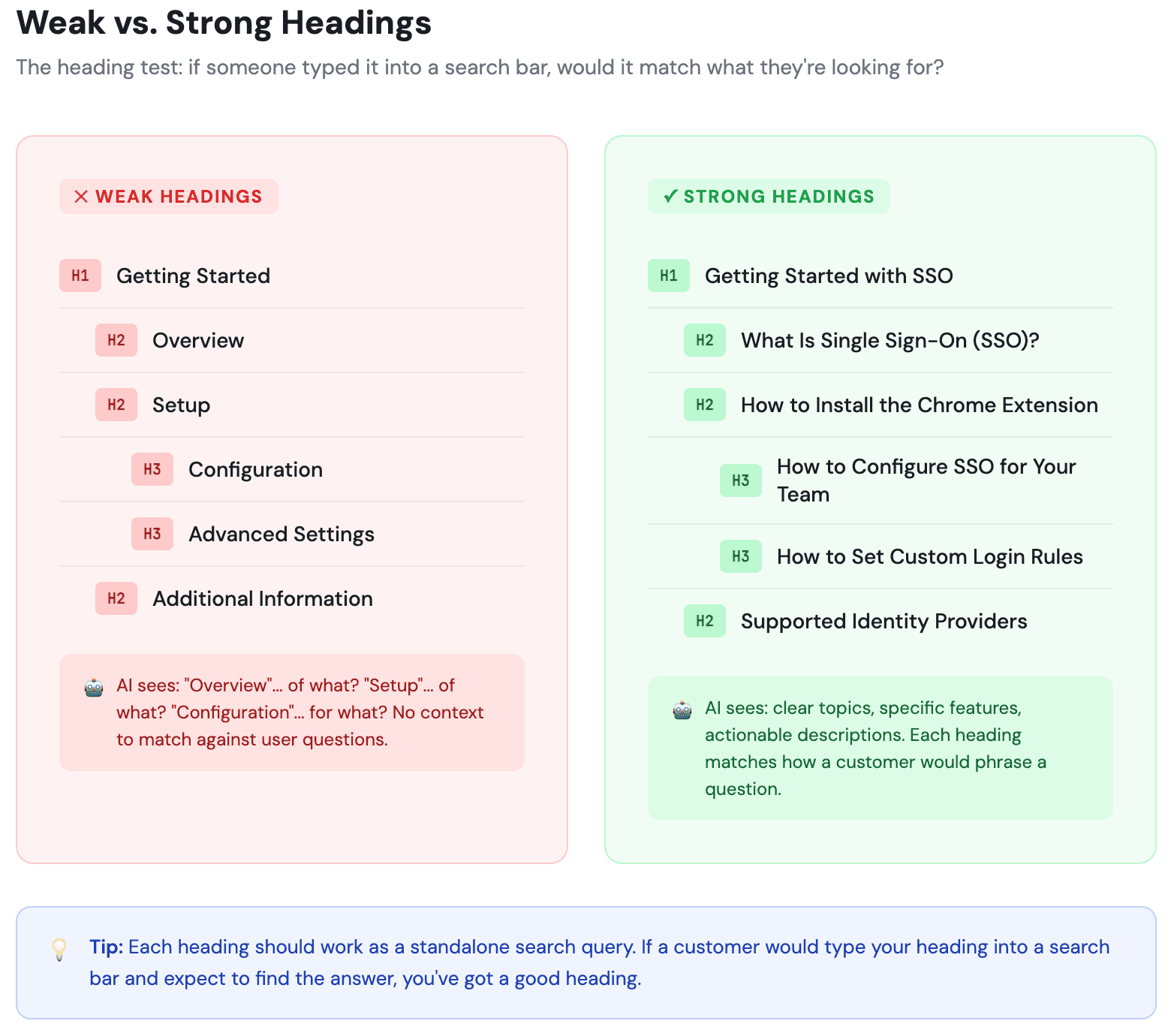
A heading called "Additional Information" won't match that query. A heading called "How to Connect the Slack Integration" will.
Here's what good heading structure looks like in practice.
Weak: Setup > Configuration > Advanced Settings
Strong: How to Install the Chrome Extension > How to Configure SSO for Your Team > How to Set Custom Notification Rules
Notice the difference.
The strong headings describe exactly what the reader will learn. Each one could be a standalone search query.
That's the test: if someone typed your heading into a search bar, would it match what they're looking for?
Hierarchy matters too.
Your H1 is the article topic.
H2s are the main sections.
H3s are sub-steps or related details under each H2.
When AI chunks your content, clean hierarchy helps it keep related information together instead of splitting a heading from its explanation.
Two more heading rules that trip up a lot of teams.
First, avoid time-sensitive language in headings and content. Phrases like "new feature," "recently added," or "latest version" are meaningless to AI.
Most RAG systems aren't time-aware. The chatbot doesn't know what "latest" means.
Instead of "What's New in Our Latest Release," write "What Changed in Version 4.2 (March 2025)."
Second, avoid duplicate titles across articles.
If you have two integration guides, don't title them both "How to Set Up the Integration."
Title one "How to Set Up the Slack Integration" and the other "How to Set Up the Zapier Integration."
Without that context in the title itself, the AI can't tell which article is relevant to the user's question.
Keep One Topic Per Section
This sounds obvious, but it's where most docs fall apart. Teams try to be efficient by cramming related information into a single section.
The result is a section titled "Account Settings" that covers how to change your password, update billing info, manage team permissions, and enable two-factor authentication.
Four different topics, one section.
For a human scanning quickly, that's annoying. For AI, it's a real problem.
When the AI chunks that section and a customer asks about two-factor authentication, the retrieved chunk might include irrelevant details about billing.
The AI then has to figure out which part of the chunk actually answers the question. Sometimes it gets it right. Often it doesn't.
It might blend billing info into its answer about 2FA, or it might give a vague response because the signal is diluted by noise.
The fix is simple. Split that one section into four. Each with its own heading. Each answering one specific question. If a section covers more than one task or concept, it needs to be broken up.
This doesn't mean your articles need to be shorter overall. It means they need to be better organized.
A 2,000-word article with ten well-defined sections is far more useful than a 500-word article with two bloated ones.
Make Every Section Stand on Its Own
This is the single highest-impact change you can make for AI readability. And most documentation gets it wrong.
Here's what typically happens. An article starts with context in the introduction:
"This guide assumes you've already installed the Chrome extension and connected your account."
Then sections later, you write "Click the icon in your toolbar to begin recording." The human reader has the context from the intro. They know which icon you mean.
But the AI might only retrieve that one section about clicking the icon. It doesn't have the introduction.
So when a customer asks "How do I start recording?", the AI returns "Click the icon in your toolbar" with no mention of what icon, what toolbar, or what needs to be installed first.
The answer is technically correct but practically useless.
The fix: restate key context at the beginning of each section. Not the entire article, just enough so the section makes sense on its own.
Instead of: "Click the icon in your toolbar to begin recording."
Write: "Once the InstantDocs Chrome extension is installed, click the InstantDocs icon in your browser toolbar to begin recording."
That one extra clause turns a confusing fragment into a complete, useful answer. The human reader barely notices the repetition. The AI now has everything it needs to give an accurate response.
This also helps humans who land on your doc from a Google search or a direct link. They didn't start at the top either.
Write Short, Direct Sentences
Long sentences cause problems for both audiences, but in different ways.
For humans, long sentences increase cognitive load. By the time a reader reaches the end of a 40-word sentence, they've forgotten the beginning.
They have to re-read it. In documentation, where people are trying to complete a task, that friction adds up fast.
For AI, long sentences increase the chance of misinterpretation. When a sentence contains multiple clauses, conditions, or ideas, the AI has to parse which parts are relevant to the user's question. The more complex the sentence, the more likely the AI grabs the wrong part.
Here's a real example.
Before:
"If you're an admin on the Business plan or higher and you've enabled SSO through your identity provider, you can manage team member access by navigating to Settings, then Security, then clicking Manage SSO, where you'll find options to add or remove users and set role-based permissions."
That's one sentence doing the work of five. An AI system trying to answer "How do I add a user to SSO?" has to extract the relevant steps from a sentence that also covers plan requirements, navigation paths, and role permissions.
After:
"This feature is available to admins on the Business plan or higher. First, make sure SSO is enabled through your identity provider. Then go to Settings > Security > Manage SSO. From there, you can add or remove users. You can also set role-based permissions for each user."
Same information. Five sentences instead of one. Each sentence carries one idea. Both humans and AI can process this quickly and accurately.
Write More Content, Not Less
This sounds like it contradicts the last section, but it doesn't. Short sentences and detailed content are not opposites. Short sentences are about clarity. Detailed content is about coverage.
Here's the problem with thin documentation. Chatbots are conversational. A customer doesn't just ask "How do I set up SSO?" and leave.
They follow up. "What identity providers do you support?" "Does it work with SAML and OIDC?" "What happens if a user's session expires?" "Can I enforce SSO for some teams but not others?"
If your doc only covers the basic setup steps, the chatbot can answer the first question. But the moment the customer goes deeper, the chatbot has nothing to pull from.
It either makes something up (hallucination) or says, "I don't have that information." Either way, the customer loses confidence in your self-service.
The instinct for most writers is to keep documentation short. That made sense when the only audience was a human skimming for a quick answer. But AI chatbots need substance to work with. The more relevant details you provide in an article, the more questions the chatbot can accurately answer from that article.
This doesn't mean padding your content with filler. Every sentence should still earn its place. But if there's a nuance, an edge case, a "what if" scenario, or a reason behind a design decision, include it. Those are exactly the kinds of follow-up questions customers ask chatbots.
One practical way to add depth without bloating your articles: put FAQs at the end of each article. More on that in a moment.
Use Consistent Terminology
This one quietly causes more AI failures than people realize.
Say your product has a feature called "Workspaces." In your getting started guide, you call them "Workspaces." In your API docs, you call them "Projects." In your FAQ, you call them "Environments." A human might figure out that all these mean the same thing from context. AI won't.
When a customer asks the AI "How do I create a new Workspace?", the AI searches for content matching "Workspace."
It finds the getting started guide but misses the more detailed API docs (which call it "Projects") and the troubleshooting FAQ (which call it "Environments"). The customer gets a partial answer.
The fix is a terminology decision, not a writing decision. Your team needs to agree on one name for each feature, concept, and action. Then use that name everywhere. Every article, every tooltip, every UI label.
This is especially important across help documentation written by different people. Without a shared vocabulary, inconsistency creeps in fast. A simple shared glossary solves this. It doesn't need to be fancy. A Google Doc or a pinned Slack message with 20-30 core terms is enough.
Remove Ambiguity from Your Writing
Pronouns and vague references are natural in conversation. In documentation, they create problems.
Consider this sentence: "After configuring the integration, test it to make sure it's working."
What does "it" refer to?
The integration?
The configuration?
The connection?
A human will probably figure it out. AI might not. And in a chunk that's been pulled out of context, even a human might struggle.
Here's a more specific example of how this plays out.
Section A: "Go to Integrations and click Add New. Select Slack from the list."
Section B: "Once it's connected, you can customize the notification settings."
If AI retrieves only Section B, "it" has no referent. The AI doesn't know what's connected. It might guess Slack, or it might not mention Slack at all. The customer gets a confusing answer.
Fixed Section B: "Once the Slack integration is connected, you can customize the notification settings in the Integrations panel."
The rule is simple. If you can replace a pronoun or vague word with a specific name and the sentence gets clearer, make the swap. Every time.
Add FAQs to the End of Each Article
This is one of the most underrated things you can do to improve chatbot accuracy. And most technical writers resist it.
The pushback is understandable. FAQs feel like poor information design. Why duplicate content that already exists in the article?
But the FAQs we're talking about here aren't duplicating the article. They're covering the nuances, edge cases, and follow-up questions that the article doesn't address.
Here's why this works so well. RAG systems find content by matching user prompts to chunks. A user's prompt is almost always phrased as a question:
"Can I use SSO with Google Workspace?"
"What happens if I delete a team member?"
"Is there a limit on the number of integrations?"
When your doc has a Q&A pair that closely matches that prompt, the semantic similarity score is much higher than if the answer is buried inside a paragraph.
The chatbot is far more likely to retrieve the right chunk and give a precise answer.
Think of FAQs as a cheat sheet for your chatbot. The question-and-answer format is exactly how the chatbot interacts with users, so it maps almost perfectly.
Now, where do you source these FAQs?
Not from the article itself. Go to your customer-facing teams. Your support team hears the same edge case questions every week. Your sales team knows the objections and clarifications prospects ask during demos.
Your customer success team knows the "gotcha" scenarios that trip up new users. These are the questions your article didn't anticipate, and they're exactly what customers will type into your chatbot.
Two rules to keep this effective. First, keep FAQs attached to their specific article. Don't create one massive FAQ page for your entire knowledge base.
A single article with 200 Q&A pairs from across 50 different topics will chunk poorly, and the AI will pull irrelevant answers. Each article should have its own 3 to 8 FAQs that are directly related to that topic.
Second, keep updating them. Pull new questions from your support inbox and chatbot logs every month. The questions customers ask evolve over time, and your FAQs should evolve with them.
Add Metadata to Every Page
Metadata is invisible to humans but critical for AI. It's the layer of information that tells AI systems what your content is about before they even read the body text.
At minimum, every documentation page should have a descriptive title. Not "Getting Started" but "Getting Started with Team Onboarding in InstantDocs." The title should include the feature name and the action.
You also need a meta description. One or two sentences summarizing what the page covers. AI uses this to decide if the page is relevant before pulling content from it.
Tags or categories help too. They let AI group related content. If you have 15 articles about integrations, tagging them all "integrations" means the AI can pull from the right cluster when a customer asks an integrations question.
Add a last updated date. AI systems increasingly weigh recency. A doc updated last week gets prioritized over one that hasn't been touched in two years. This also helps humans trust the information is current.
Finally, consider product version or feature tags. If your product has multiple plans or versions, tagging content with the relevant plan (e.g., "Business plan," "Enterprise plan") helps AI serve the right answer to the right customer.
Without metadata, AI is doing the equivalent of picking a book off a shelf with no title, no table of contents, and no chapter headings. It can still read the words, but it has no way to quickly assess relevance.
Fix Your Tables for AI
Tables deserve their own section because they cause a surprising number of chatbot failures.
The first problem is symbols. Many documentation teams use ✓ and ✗ in comparison tables.
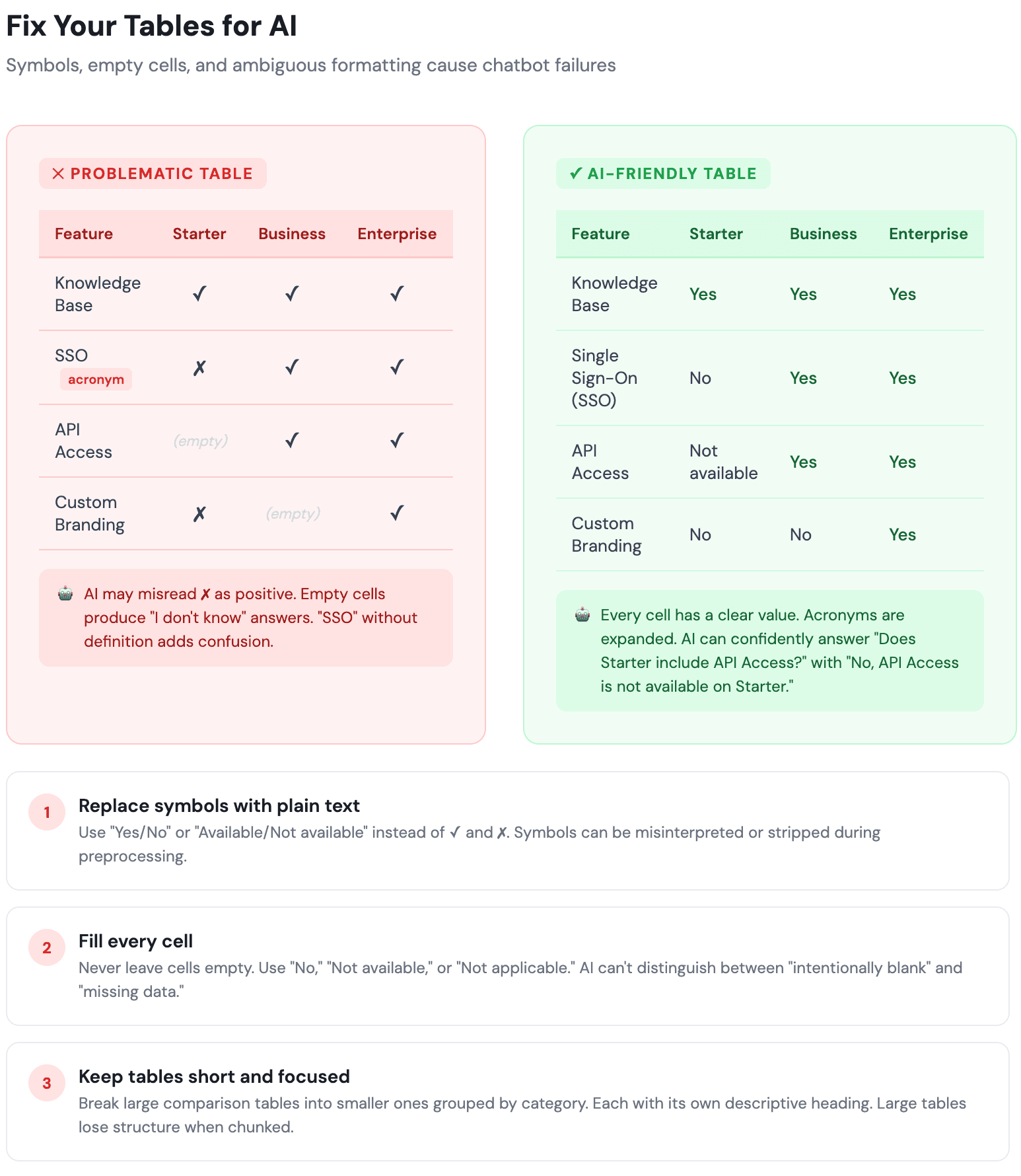
Humans understand these instantly. But when AI preprocesses your table into text, those symbols can get misinterpreted or stripped out entirely.
In some cases, the AI reads ✗ as a positive indicator because the symbol resembles an "x marks the spot" rather than a "no." The result is the chatbot confidently telling a customer that a feature is available when it's not.
The fix: use plain text. "Yes" and "No." Or "Available" and "Not Available." It's less visually elegant, but it's unambiguous for both humans and AI.
If you must use symbols, add a legend directly below the table that spells out what each symbol means. "✓ = Supported, ✗ = Not Supported." That legend gets chunked alongside the table and gives the AI the context it needs to interpret correctly.
The second problem is empty cells. When a table has blank cells, the AI doesn't know if the feature doesn't apply, isn't available, or if someone just forgot to fill it in.
It has no way to distinguish between "intentionally left blank" and "missing data." So when a customer asks "Does the Starter plan include API access?" and the cell is empty, the chatbot either guesses or says it doesn't know.
Fill every cell. If a feature isn't available, write "No" or "Not included." If it doesn't apply to that plan, write "Not applicable." If information is coming soon, write "Coming soon." Never leave a cell empty.
The third problem is table size. A comparison table with 30 rows and 8 columns might look comprehensive on a web page. But when it gets chunked into text, the relationships between headers and values break down.
The AI can't maintain the structure across that many rows. Keep tables short and focused. If you need to compare 30 features, break it into three or four smaller tables grouped by category, each with its own descriptive heading.
Format for Both Audiences
Some formatting decisions look fine to humans but completely break AI processing.
Images without alt text. AI can't see images. If your doc shows a screenshot of where to click, the AI gets nothing from it. Always add alt text that describes what the image shows and why it matters. "Screenshot of the Settings page with the SSO toggle highlighted" gives AI the context it needs.
"Click here" links. A link that says "click here" tells AI nothing about where the link goes. A link that says "Learn how to set up SSO for your team" tells both AI and humans exactly what to expect.
Complex tables. Tables with merged cells, nested headers, or visual groupings lose their structure when AI processes them as text. If you use tables, keep them simple: one header row, no merged cells, clear column labels. For comparisons with many variables, consider using structured lists instead.
Content hidden behind toggles and accordions. Some AI systems can't access content inside collapsible UI elements. If a piece of information is important enough to exist, put it in the page body where both humans and AI can reach it.
Why This Matters for Your Knowledge Base
Everything in this article gets more urgent when your docs power a customer-facing AI tool.
Think about how support works today. A customer has a question. They either search your knowledge base directly or ask your AI chatbot. If the chatbot is pulling from docs that have vague headings, ambiguous language, and sections that depend on context from other pages, the response will be weak. The customer won't trust it. They'll submit a ticket instead.
That defeats the entire purpose of building a knowledge base. The goal is to reduce support tickets and help customers find answers on their own. But when AI tools can't parse your content properly, self-service breaks down and customer churn goes up.
The companies seeing the best results from AI-powered support aren't the ones with the fanciest chatbot. They're the ones with the cleanest, best-structured documentation. The AI is only as good as the content it pulls from.
How InstantDocs Handles This for You
Applying all of these principles across hundreds of help articles takes time. Most teams don't have a dedicated technical writer, let alone one who understands how AI retrieval works. That's the gap we built InstantDocs to fill.
When you create content with InstantDocs, the AI-friendly structure is built in. Our AI Recorder lets you walk through a process or workflow on screen, and we turn that recording into a properly structured article with clear headings, self-contained sections, and step-by-step instructions. You don't have to think about chunking or metadata. It's handled automatically.
Then there's the Knowledge Gap Finder. It analyzes your existing knowledge base and shows you exactly where content is missing. These gaps are the exact places where AI tools are most likely to give wrong answers or hallucinate, because there's simply nothing in your docs to pull from. Instead of guessing what to write next, you get a clear list of what's needed.
Everything publishes as clean, web-based content that's searchable, accessible, and optimized for both human readers and AI systems. It also integrates with your existing tools so your content stays connected to your support workflow.
We've kept pricing simple too. InstantDocs starts at $79/month with locked pricing, and every new account gets VIP onboarding so you're not figuring this out alone.
If your docs aren't ready for both audiences yet, now is the time to start. Try InstantDocs or book a demo to see how we can help you get there faster.


Instantly build support docs that delight.
Book a demo